

Customer Guide
This guide is for people submitting tickets to KPI — internal employees asking another department for help, or external customers raising requests.
"Ticket" or "Request"? Same thing from your side — the page is called Submit Ticket, and the New Request button on My Requests opens it. Whichever name you see, you're filing one item for the department you pick to handle.
What you'll do here
- Submit a new ticket describing what you need
- Check the status of a ticket you submitted
- Chat with the agent handling your ticket (if you signed in)
Submitting a new ticket
- Open the Submit Ticket page (the
/intakelink, or the "Submit a ticket" link on the sign-in page). - The Ticket Datetime is filled in automatically — it locks in when you submit.
- Pick the Country / Department that should handle this. The dropdown only shows departments that accept intake tickets.
- Pick the KPI Type — this is the category of request (for example Ad Hoc, Request, Issue). The list updates based on the department you picked.
- Optionally pick a specific User in that department. Leave it blank and an admin will assign someone.
- Write a clear Description of what you need.
- Fill in Your Name and Your Email. These are required — they're how the agent will get back to you.
- Verify your email (only if you're not signed in): click Send verification code, then enter the 6-digit code we email you. This proves the address is really yours, so nobody can file a ticket under someone else's email. Once verified, the Submit button unlocks and your browser is remembered for ~30 days (so you won't be asked again soon). Signed-in users skip this step entirely.
Languages: on the New Request page and your tickets' status pages the language switch is at the bottom, next to Help — pick English or Indonesia and the page, its top bar and its footer follow it.
Light or dark: the moon (or sun) beside your name in the top bar switches between light and dark, for every page; until you choose, KPI follows your device.
Signed in vs. not signed in
- If you're signed in with your Google account, you'll see a green "Submitting as <your name>" banner. Your name/email come from your account; you don't need to type them.
- If you're not signed in, you'll see a yellow warning. You can still submit, but you won't be able to reply via chat later — the agent has no verified way to confirm it's you. They will email you instead. Click "Sign in to chat" if you want chat replies.
- Click Submit Ticket. A confirmation appears with View ticket status (and Submit another ticket).
Checking ticket status
Every ticket has a status page. Only the person who submitted the ticket can open it:
- Signed in — with the account (or the email address) you submitted with. My Requests lists every ticket you submitted — with its number (#1042), the department, who is handling it, its status and when it was last updated — each linking to its status page. The tabs split them into Open, In progress and Closed; search by number, subject or department, or narrow by department and date.
- Not signed in — from the browser where you verified your email (it is remembered for ~30 days), or from the link in any email we send about your ticket (closed, rejected, reopened, deadline extended). That link works on any device.
Anyone else who opens the page is asked to sign in.
The status page shows:
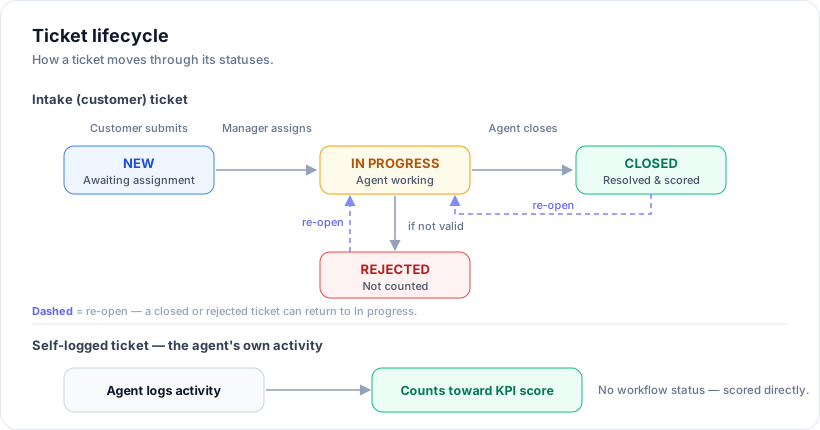
- Status badge: New (waiting for an admin to assign), On Progress (an agent is handling it), or Closed (resolved).
- Submitted / Assigned / Country / KPI Type — basic facts about the ticket.
- Discussion — agent and customer messages exchanged on this ticket.
Lost the link?
Sign in and open My Requests, or open the link in the latest email about your ticket. Tickets can't be looked up by email or name — that would let anyone who knows your address read them.
Chatting with the agent
Chat is at the bottom of the status page.
You can chat only if:
- You signed in when you submitted the ticket (or signed in later as that same account), and
- The ticket isn't waiting for assignment (status is On Progress or Closed — chat stays open even after the ticket is closed, in case you have follow-up).
You cannot chat if:
- You submitted without signing in — the page shows: "This ticket was submitted without sign-in, so customer chat is disabled. The agent will follow up via email."
- You're signed in but as a different account than the one that submitted — the page shows: "This ticket can only be replied to by the original submitter."
To send a message: type in the box at the bottom of the Discussion panel, optionally attach one photo, and click Send. Your message appears immediately. The agent will see it the next time they open the ticket.
Frequently asked
My ticket says "Not recorded" for First Response. That means the agent never sent a chat message on this ticket (they may have handled it offline) — the field is empty rather than a number. If they later close the ticket without chatting, the system records the moment of closing as the response time.
Can I edit my ticket after submitting? No. Once a ticket is in, only the assigned agent can change its fields. You can keep chatting on it though.
Can I delete my ticket? No. Contact the agent or department admin.
The form rejected my submission. Most often the cause is a missing required field (Name, Email, Description, Country/Department, KPI Type), or — if you're not signed in — you haven't verified your email yet (Submit stays disabled until you enter the code we sent).
I didn't get my verification code. Check spam, confirm the email address is typed correctly, then click Resend code (there's a short cooldown between sends). The code expires after a few minutes — request a fresh one if it's old.