

Agent Guide
This guide is for people in the USER role — staff who own KPI tickets, respond to intake requests, and log their own activity.
What you'll do here
- Handle tickets assigned to you (from customer intake)
- Self-log your own KPI activity (work you did that should count toward scoring)
- Chat with customers
- Close tickets when the work is done
Signing in
- With a company mailbox: Sign in with Google (or Microsoft).
- Without one (frontdesk staff, Value Designers): Sign in with Employee ID. It opens the HRIS sign-in — use the same employee ID and password as in HRIS — and brings you back to KPI. Already signed in to HRIS? Open KPI from your account menu there; you arrive signed in. Forgot the password? HC or your manager gives you a new code in HRIS, exactly as for HRIS itself.
Signing out of KPI signs you out of HRIS too (and the other way round): they share one sign-in.
Your Dashboard
Signing in lands you on your Dashboard:
- My KPI score — your score this month so far (or the latest month with one), and how it moved against the month before. The same number as your row on Performance; click it to open that.
- My KPI tickets — how many of your tickets are open, how many are in progress, and how many you finished this month.
- My Requests — what you've asked other departments for, by status.
- KPI score trend — your score over the last six months (hover a month for its value), and By KPI group — the month's score per KPI group.
- Open work — your open tickets, oldest first.
Click any card to open the page behind it.
To find something, use the magnifier at the top right: a ticket by its words or number (#1042), a teammate, a page or a section of this guide. You can also ask it a question: my score, my open tickets, who is below target, how is Zahra doing. It answers from KPI's own data, and only with what you may see.
Your department's performance
Performance in the top bar is the same page your managers and the admins use, showing your own department:
- The cards — the report month, your department's tickets, its score, and Your Score.
- Employee Performance — everyone in your department with their score and tickets for the month, with you picked first. Pick someone else to see their KPI Details: their tickets by KPI group and KPI type. Back to department shows the whole department's tickets together.
- Trends — the same people month by month (or by quarter, semester or year).
Report Month at the top right picks another month. You see your department's people, not other departments, divisions or countries. Managers see the departments they manage, and admins see the whole organisation.
Your profile
Profile, in the menu under your name at the top right, opens your Mastro card over the page you're on — the business card HRIS draws for you: your name, department, email and phone, your photo (a gold star on its ring for each Fasttrack), your role in KPI in script beneath it, your employee ID (the one you sign in with) and when you joined. It follows light or dark like the rest of KPI. It holds no tickets — those are on My KPI and My Requests. HRIS is the source of these details: to correct one, ask HC, or use Open in HRIS.
Two kinds of tickets
| Kind | How it gets there | What you do |
|---|---|---|
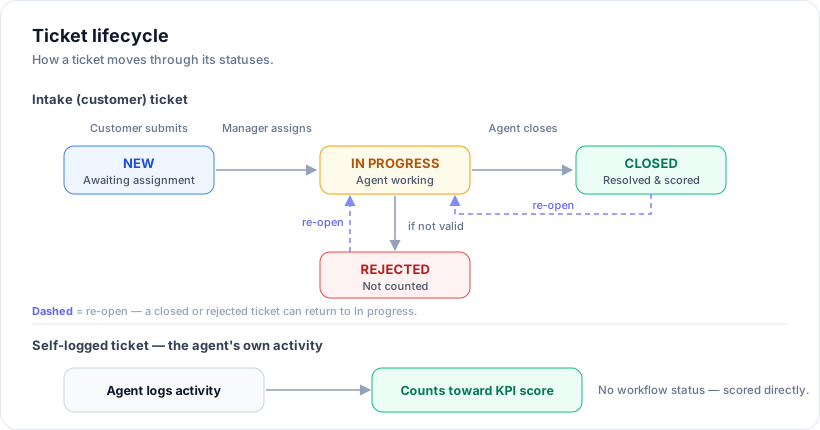
| Intake ticket | A customer (internal or external) filed it via the Submit Ticket page. An admin assigned you, or you were picked at submission. | Chat with the customer, do the work, mark it Closed. |
| Self-logged ticket | You create it yourself for work you've already done (the kind that counts for KPI scoring but didn't come through intake). | Open the New Ticket form, fill the fields, submit. |
Both kinds end up on My KPI (top nav).
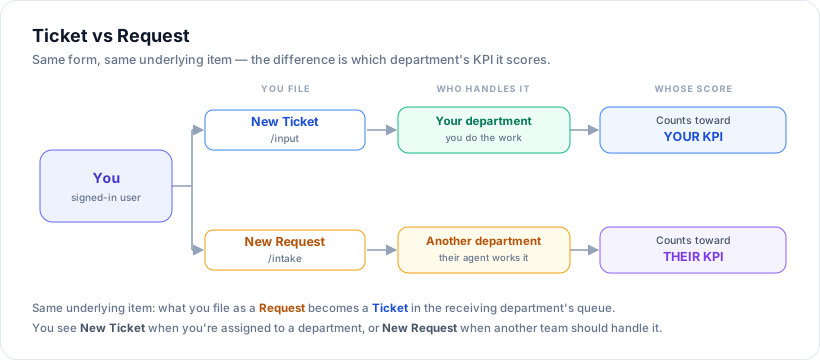
Ticket vs Request — which am I filing?
The create menu in the top nav shows one of two entry points, depending on whether you're filing work for your own department or asking another one to do it:
New Ticket (/input) | New Request (/intake) | |
|---|---|---|
| What it's for | Work you own and log in your own department | Something you ask another department to do — you're the requester |
| Whose KPI it scores | Yours | Theirs |
| What happens next | Scored directly (self-logged), or you work it New → In progress → Closed | Lands in their queue as a New intake ticket; their manager assigns it and their agent closes it |
It's the same underlying item — what you file as a request is simply a ticket in the receiving department's queue, seen from the other side. You'll see New Ticket when you're assigned to a department, and New Request when you have none of your own (or whenever another team should handle the work).
Self-logging a ticket
- Open My KPI and click New ticket.
- Pick the Ticket Date with the date picker.
- Pick your KPI Type — the picker is grouped by KPI Group; only types your department is allowed to log appear.
- Fill the metric fields the type requires:
- rr (response/resolution rule): response time (min), resolution time (min).
- rr-dynamic (Ad Hoc with an extendable deadline): same as
rr, plus a Resolution Deadline (working days) you set per ticket (it defaults from the KPI Type). Raise it later to extend — you must give a reason and the requestor is emailed automatically. Note: these tickets count toward the month they are resolved, not the month requested. - submit (cutoff rule): submit time (hh:mm).
- project (project count): a number.
- accuracy: response accuracy %, data accuracy %.
- acr (1-5 scores): six components — by default FRT, Attendance, Finding, Backlog, Teamwork, Obedience, though an admin can rename them per KPI Type, so use whatever names the form shows. You also pick the team member you're rating from a dropdown (see Rating your team below) — the free-text description becomes an optional Remarks note.
- IC rules: completion %, find date/time + close date/time, etc.
- IC CCTV Ad Hoc: for tickets that came in from a customer (intake), the working-day SLA is timed automatically from when you were assigned the ticket to when you close it — the Start/Finish inputs are hidden, and the ticket isn't scored until it's closed. Only IC-logged (non-intake) CCTV Ad Hoc tickets still ask for Start/Finish manually.
- If the date is a weekend or a recorded holiday, the form warns you. Tick "Count as weekend/holiday work" if it should still count toward KPI scoring; otherwise leave it off and the ticket will be excluded.
- Click Submit Ticket.
The form remembers your country/department from your assignment — you don't pick those.
Bulk import from a spreadsheet
To log many tickets at once, use Import on My KPI (next to New ticket):
- Download template — you get an
.xlsxwith one tab per KPI type in your department. Each tab lists the columns that type needs (Ticket Date is required; your name/country/department come from your login, so they're not in the sheet). - Fill one row per ticket in the matching tab. Leave a tab empty if you have nothing for it.
- Upload the file and click Preview — you'll see, per row, whether it's ready or has an error (bad date, missing required value, wrong tab).
- If there are no errors, click Import to create them. Import only creates tickets; re-uploading the same file makes duplicates.
For ACR, put the team member's name in the Description column — on import it's matched to the members of your department you manage, so you never need an internal id. A name that matches nobody (or someone who wasn't on the team that month) shows as an error in the preview; nobody is added from a sheet (see Rating your team below).
No template to download? If the page says "… has no KPI types assigned" instead of showing the Download template button, your department has no KPI types of its own to import. For a parent department (one with sub-departments), the KPI types live on the sub-departments, so there's nothing to log here — file under the sub-department instead, or ask an admin if you expected to import.
Rating your team (ACR)
If you manage a department, some KPI types (notably ACR — Agent Conduct Rating) score the members of your team. Everyone on a team is simply a member, as in HRIS — including people without a company mailbox (frontdesk staff, Value Designers), who sign in with their employee ID and are listed, scored and given tickets like anyone else (they just get no emails).
Members come from HRIS: HC adds new people there, records a name change or a last day there, and it arrives here. You can't add or rename anyone in KPI — if somebody is missing, ask HC.
Rating a member (ACR)
When you log an ACR ticket (My KPI → New ticket → pick the ACR KPI type):
- Pick the Team member from the dropdown. It lists the members of the department you manage who were on the team in the ticket's month — so you can still rate someone for a month they worked, even after they've since left.
- Enter the six 1-5 ratings as labelled on the form (by default FRT, Backlog, Finding, Teamwork, Obedience, Attendance).
- Remarks is optional — a note about the month, not the person's name.
- Submit. The score is the weighted average of the six ratings.
The rating counts toward the member's KPI. If you're the primary manager of a sub-department (ACR, under ALLU Indonesia) — its Supervisor — your own KPI is the average of your members' scores — and that, in turn, is part of the parent department's manager's KPI (see How scoring works in the Management guide). It stays yours to change: you'll find it on the member's page (below), on their KPI tickets and — as a supervisor — on your own My KPI, with the edit button; the member can't edit or delete it.
Seeing one member's history
Click a member's name — on My Team, or in a monthly drilldown — to open their member page: a month-by-month ACR score trend plus the per-component breakdown, and for a Value Designer a Purchase Achievement trend. All KPI tickets on that page opens every ticket of theirs.
Handling an intake (customer) ticket
You get a ticket when:
- Customer picked you directly at submission, or
- An admin assigned the pending ticket to you.
You'll get an email "Ticket assigned: …" with a link.
From My KPI
- Open My KPI → KPI Tickets tab. Each ticket shows its number, who asked for it (Requester — Self-logged when you logged it yourself) and its Status. An ad hoc ticket with a working-day deadline also shows when it is Due — in red, marked overdue, once that day has passed while it is still open.
- Status: New, In progress, Closed or Rejected for intake tickets. A ticket you logged yourself is Not scored yet until it has a score, then Done.
- Above the table: search by #number, description, KPI type or requester, and filter by KPI type, status and ticket date (the last 30 days unless you pick another; choosing a status shows every date). Open finds everything not done yet.
- Click the pencil icon on a row to open the ticket edit page.
The ticket edit page
The page has two halves:
- Edit form — Ticket Date, Department, KPI Type, Description, Status. The metric fields for responseTimeMin and resolutionTimeMin are hidden on intake tickets — they auto-fill (see below). You can change the Status dropdown forward only: New → On Progress → Closed. Going back is not allowed.
- Discussion — chat with the customer. Two badges at the top:
- First response — how long after assignment your first reply landed.
- Resolution — how long after submission the ticket was closed.
Replying to the customer
Type a message in the Discussion box, optionally attach one photo, and click Send.
- Your first reply automatically writes the First Response time into the ticket metrics. If the ticket was New, sending also flips it to On Progress.
- The clock for First Response starts when you were assigned the ticket, not when the customer submitted it. So time spent in the unassigned queue doesn't count against your response time.
- The customer sees your reply on their status page the next time they refresh.
Closing a ticket
Two paths:
- Chat first, then close: chat normally, then on the edit form set Status to Closed and click Update Ticket. The system records the close time and writes the Resolution metric.
- Close without chatting (e.g. you handled it offline / a quick fix): on the edit form set Status to Closed and click Update Ticket. The system treats the close itself as your first response — both First Response and Resolution get the same duration.
A closure email is sent to the customer.
After closing or rejecting
The Update Ticket form locks once the status is Closed or Rejected. You'll see a banner explaining that field updates are locked. You can still send chat messages on a closed ticket if needed.
If you closed or rejected something by accident, click Re-open Ticket to move it back to On Progress. The requestor is notified by email, and you can update the details as needed.
How your score is calculated
Each ticket type has a Rule that decides what counts as a pass. Common ones:
- rr — both response time and resolution time must be within their SLA targets (set per KPI Type by an admin). Score = weighted average.
- rr-dynamic — like
rr, but the resolution target is the ticket's own working-day deadline. If you extended it, the latest deadline is what counts. The ticket scores in the month it was closed. - acr — six 1-5 ratings; the weighted average becomes the score.
- accuracy — response accuracy % and data accuracy % vs. their targets.
- submit — the submit time must be earlier than the cutoff for that day.
Working hours and your country's holiday calendar are honored for time-based calculations. Tickets dated on a weekend or holiday are excluded unless you ticked "Count as weekend/holiday work".
You can see your aggregated scores on Performance: your row in Employee Performance, and its KPI Details broken down by KPI group and KPI type.
Frequently asked
I can't see a KPI Type that I should be able to log. Your department admin hasn't assigned that KPI Type to your department yet. Ask an admin.
A ticket I closed yesterday shows "Not recorded" for First Response. The chat never recorded a first reply (the messages may have come from a path that didn't trigger it). New tickets going forward record it correctly; legacy tickets can be backfilled by an admin running a script.
Can I reassign a ticket to someone else? Not yourself, but your department manager (or an admin) can — they reassign it to a teammate in the same department from My Team → Assigned tickets. Ask them to move it; the new owner is emailed and their response/resolution clock restarts.
Can I edit a closed ticket's description? No — closed tickets lock all fields. The chat stays open.
My weekend ticket isn't counting. Either tick "Count as weekend/holiday work" on the ticket, or have it dated to a working day. Without the tick, working-day filter excludes it.